We sold our last Mendel90 kit today. We found it increasingly difficult to get Dibond that wasn't scratched and after going through four different suppliers we eventually gave up and synchronised the rest of our stock to the number of good Dibond sheets we had managed to get.
The problem is we don't have room for an 8' x 4' router, so we get the sheets cut into smaller blanks that fit on my A2 router. The sawyers that cut them keep forgetting that, unlike other materials like wood and acrylic, the aluminium chips that come off Dibond are sharp enough to cut through the protective film and damage the surface. That means that all the chips need to be cleaned off the cut pieces before they are stacked. You would think that companies whose main business is selling cut to size sheets for decorative use would know this, but they all seem to make the same mistakes over and over again, wasting my time and their money.
Many thanks to all our customers for all their kind words and recommendations.
Back to experimenting and blogging ...
Friday, 2 October 2015

Wednesday, 30 July 2014
PLA pipe cleaner
Yesterday one of my machines stopped extruding ABS mid print. I immediately suspected the filament as faulty filament is my main source of unreliability these days, having eliminated other things like push fit connectors and wires that break.
I removed the hobbed bolt to clean it and found that I could not feed filament forward by hand but I could pull it back easily, a sign that the nozzle aperture was blocked by something. I spent a long time trying to clear the blockage with several attempts that failed. Here is the method that successfully cleared it in the end: -
I pushed the shank of a 0.4mm drill up the nozzle aperture while it was hot. That cleared the blockage enough to be able to extrude but the particle of contamination kept finding its way back into the aperture causing the plastic to come out in a flat turbulent ribbon instead of a cylinder. That made poor prints with rough surfaces and strings.
PLA has a useful property that you can heat it to a temperature between its glass transition and its melting point where it becomes a rubbery solid. When you pull it backwards it stretches and becomes thinner, so it peels away from the walls of the melt chamber and comes out in one piece. Anything in the melt chamber is pulled out with it leaving it completely empty and clean.
ABS does not have this property and is more like chewing gum above 105°C. It can be pulled back at around 130°C but it usually does not all come out because it is a super viscous liquid rather than an elastic solid.

Because of this I decided to flush out the ABS with some natural PLA. I did this at 240°C until it was extruding clear PLA,. then I cooled it to 80°C and pulled it out. This is how it looked: -

As you can see it stretches until the last bit comes away from the walls of the barrel and the shape of the end matches the cone leading to the nozzle. The problem is this did not get the particle blocking the nozzle because that was pressed into the aperture by the flow of PLA when I inserted it.
The final trick was to push a drill shank up the nozzle to force the contamination into the melt chamber before cooling it to 80°C. That ensured it was embedded in the PLA when I pulled it out. Here you can see the particle that caused all the trouble.

So to recap:
This method of cleaning with PLA is much better than using solvents or burning out nozzles that I often see recommended as it can be done in situ and doesn't risk damaging anything.
I removed the hobbed bolt to clean it and found that I could not feed filament forward by hand but I could pull it back easily, a sign that the nozzle aperture was blocked by something. I spent a long time trying to clear the blockage with several attempts that failed. Here is the method that successfully cleared it in the end: -
I pushed the shank of a 0.4mm drill up the nozzle aperture while it was hot. That cleared the blockage enough to be able to extrude but the particle of contamination kept finding its way back into the aperture causing the plastic to come out in a flat turbulent ribbon instead of a cylinder. That made poor prints with rough surfaces and strings.
PLA has a useful property that you can heat it to a temperature between its glass transition and its melting point where it becomes a rubbery solid. When you pull it backwards it stretches and becomes thinner, so it peels away from the walls of the melt chamber and comes out in one piece. Anything in the melt chamber is pulled out with it leaving it completely empty and clean.
ABS does not have this property and is more like chewing gum above 105°C. It can be pulled back at around 130°C but it usually does not all come out because it is a super viscous liquid rather than an elastic solid.
Because of this I decided to flush out the ABS with some natural PLA. I did this at 240°C until it was extruding clear PLA,. then I cooled it to 80°C and pulled it out. This is how it looked: -
As you can see it stretches until the last bit comes away from the walls of the barrel and the shape of the end matches the cone leading to the nozzle. The problem is this did not get the particle blocking the nozzle because that was pressed into the aperture by the flow of PLA when I inserted it.
The final trick was to push a drill shank up the nozzle to force the contamination into the melt chamber before cooling it to 80°C. That ensured it was embedded in the PLA when I pulled it out. Here you can see the particle that caused all the trouble.
So to recap:
- Heat to extrusion temperature and pull out the filament being used.
- Use a 0.4mm drill shank to clear the aperture.
- Insert PLA (preferably natural so you can see the contamination) and flush through the remaining original filament. You may need to keep clearing the aperture with the drill shank.
- Cool the extruder to 80°C with the drill shank in place to ensure the nozzle is clear.
- Remove the drill and then pull out the PLA.
- Inspect the end that comes out to see the culprit contamination.
This method of cleaning with PLA is much better than using solvents or burning out nozzles that I often see recommended as it can be done in situ and doesn't risk damaging anything.
Friday, 13 June 2014
Lights, camera, action ...
I have been using the excellent OctoPrint by Gina Häußge to control two of my Mendel90 printers with a Raspberry Pi for a while now. I prefer the convenience of using an Ethernet connection rather than USB. It means I can control a machine from any PC in the house rather than having to dedicate a laptop that had to be close to a machine. Here are the details of my set up: -
Mounting
There are several places a Raspberry PI can be mounted but I chose to place it on top of the PSU so that the wiring was kept short and didn't need to pass though any of the frame elements or need any new holes drilling. I.e. all the electronics are together in one bay.
The RPI model came from https://github.com/TomHodson/Raspberry-Pi-OpenSCAD-Model

When it comes to mounting the camera there are again lots of possibilities. I contemplated something like this:http://www.shapedo.com/danielbull/raspberry_pi_camera_mount_for_the_nop_head_mendel90_3d_printer but I went for a straight on view from the back by printing a bar that spans the stays and clamps to the Dibond.raspberry_pi_assembly:
Vitamins:
2 Nyloc nut M2.5
2 M2.5 pan screw x 12mm
1 Raspberry PI model B
2 Washer M2.5 x 5.9mm x 0.5mm
Printed:
1 rpi_bracket.stl

This gives a view orthogonal and centred with the bed so the only degree of freedom the camera needs is vertical tilt.

The bar can be clamped at any height. Lower gives a better view of the nozzle when it it close to the bed but tall objects soon go out of the field of view. Obviously a longer flat cable is needed to connect the camera to the RPI than the one supplied with it. They are readily available on eBay.
I also attached a 300 lumen LED light strip to the bar which gives enough light for the camera, even in a dark room. Having the light behind the camera avoids any glare from the glass. The particular strip I used is a SPS125 from Sanken Power Systems. I bought them several years ago and I don't think they are commonly available. However, the design is easily customisable by adding a new description to scad/vitamins/light_strips.scad. The clamps should then morph to suit.
The bar is printed in two unequal halves and the shorter one (red) slides into the longer one. The seam marks where the camera should be placed for alignment with the bed and the overlap length is such that both halves are the same height in total, so printing them together allows better cooling without needing excessive slowdown.

By default the RPI camera is focused at infinity and the lens is locked in place. It is possible to break the seal though and focus it very close indeed giving a microscopic view. For this application it only needs tweaking a little to focus at the middle of the bed. I designed a little focus wheel that can be glued onto the end of the lens carrier to make it easier to turn.raspberry_pi_camera_assembly:
Vitamins:
2 M2 cap screw x 12mm
2 M3 cap screw x 10mm
7 M3 cap screw x 16mm
2 Nyloc nut M2
9 Nyloc nut M3
1 Raspberry PI camera
1 Sanken SPS125 light strip
2 Washer M2 x 5mm x 0.3mm
9 Washer M3 x 7mm x 0.5mm
Printed:
1 rpi_camera_bar_stl.stl
1 rpi_camera_back.stl
1 rpi_camera_focus_ring.stl
1 rpi_camera_front.stl
2 rpi_light_clamp.stl
When I ran the camera with the default settings in OctoPrint it streamed data at about 16Mbits / second and used 40% of the RPI's CPU time. It worked fine printing from SD card but slowed down the comms when printing over USB. On a suggestion by Gina I added the usestills option to scripts/webcamDeamon, i.e.
camera_raspi_options="-fps 10 -x 640 -y 480 -usestills"That reduced the data rate to 3Mbps and the CPU load to 5%. It also had the side effect of vastly increasing the field of view. Here is a time-lapse captured by OctoPrint before I made the change. Notice the reduced field of view compared to the picture above.
Nothing on my WinXP machine would play the mpg files produced by OctoPrint, so I downloaded VLC Media Player. I found that is also able to record the OctoPrint video stream on the host PC. This video clip was recorded during the same build as the time-lapse above.
On another Mendel90 that I only use to print ABS parts, and hence don't fit the fan duct, I use a Logitech C270 USB webcam mounted in front of the machine, which gives a view like this: -

For this machine I mounted the same light strip just behind the gantry on brackets that hang over the top of the stays in the same way as the spool holders.


light_strip_assembly:
Vitamins:
2 M3 cap screw x 10mm
2 Nyloc nut M3
1 Sanken SPS125 light strip
2 Washer M3 x 7mm x 0.5mm
Printed:
1 light_strip_bracket_left.stl
1 light_strip_bracket_right.stl
Wiring
I power the RPI with the 5V standby rail of the ATX PSU and use one of the GPIO lines to turn the rest of the PSU on and off and another to turn the light on and off.One thing I don't like about the RPI is the use of a micro USB connector for the power. A lot of micro USB leads have two much resistance to have enough voltage left at the RPI end. When you buy them there no indication of resistance but I managed to get some that where about 1.6Ω! To get around that I simply cut the wire off close to the plug and soldered to what was left.
The 5V volt supply comes from the purple wire of the ATX power supply. It looks blue on the photo below, but that is the camera lying! For a solid ground referenced to the logic on the Melzi I run a stout wire to the top terminal of the X limit switch. This ensures any voltage drop or noise in the ground wire between the PSU and the Melzi does not affect the USB comms and I find them rock solid in this configuration.

The remaining connections are the green PS_ON of the power supply goes to the drain of a small SMT MOSFET mounted on the back of the vero board and the negative lead of the light strip goes to the drain of a larger MOSFET. The positive lead of the light strip goes to the FAN+ terminal on the Melzi.
To make the vero circuit I started by cutting the tracks in a few places and drilling out some holes to provide strain relief for the flying leads.

I wanted the board to mount vertically but I didn't have a right angle connector to hand. Since I only need a few pins from one row I surface mounted a through hole straight connector.
Here it is with the MOSFETs and wires added: -

On another machine I just soldered the MOSFETS to the connector and used heatshrink sleeving for strain relief for the flying leads on the drains. Much quicker but a bit fragile.
Software
OctoPrint
There are two ways to get OctoPrint onto a Raspberry Pi. You can start with a Raspbian image such as this one and then add OctoPrint by following these instructions or you can get an image for the RPI with OctoPrint already installed (called OctoPi) from here. The first method needs more steps and gets you the latest version. The second method is simpler but it takes me several hours to download, unzip and copy the image onto the SD card, so the first method can be quicker if you already have Raspbian installed.When the RPI is booted you should be able to connect to it with SSH client like Putty or Tera Term. The default host name is octopi, username: pi, password: raspberry. If your DHCP server does not register the host name with DNS then you can find its IP address with a free application called Advanced IP Scanner found here. A good tutorial can be found here.
The first thing I do when connected is run :-
sudo raspi-configto expand the file system, set the time zone and change the host name, etc.
VNC
In order to be able to update the firmware I install the Arduino IDE and to run that I need a remote desktop so I installed TightVNC following the guide here.+-+TightVNC+Viewer+21032014+193448.bmp)
Arduino IDE
I install Arduino 1.0.1with:sudo apt-get install arduinoI then get a copy of Marlin from Github with:
git clone git://github.com/nophead/Marlin.gitI then move the Melzi board support package to the Arduino IDE installation with:
cd Marlin
sudo mv Marlin/Melzi /usr/share/arduino/hardware
+-+TightVNC+Viewer+05062014+162031.bmp)
The Arduino IDE is a bit slow and clunky running on a RPI over VNC but it does work. A lighter weight alternative is a package called ino that can compile and download Arduino applications from the command line. It still needs the Arduino IDE installation but avoids the need for VNC.
Installation should be as simple as:
sudo pip install inoBut that installs an out of date version that does not scan the hardware directory for additional board support packages, and so does not support Melzi. Instead I install it from source:
git clone git://github.com/amperka/ino.gitIf make install complains python2 does not exist then do:
cd ino
sudo pip install -r requirements.txt
sudo make install
sudo ln -s /usr/bin/python2.7 /usr/bin/python2Ino expects the source code to be in a directory called src whereas the IDE puts it in a directory with the same name as the sketch. A simple workaround is to make a symbolic link in the directory above with:
ln -s Marlin src(The other BSP packages have to be removed from the src directory because otherwise ino tries to build them and fails).
rm -rf src/Gen7 src/Sanguino
The firmware can then be built and downloaded with:
ino build -m atmega1284 && ino upload -p /dev/ttyUSB0 -m atmega1284
GPIO
To control the RPI's GPIO pins I followed the instructions here: https://projects.drogon.net/raspberry-pi/wiringpi/download-and-install/. This boiled down to:git clone git://git.drogon.net/wiringPiThen I extended the systems actions section of ~/.octoprint/config.yaml with the following:
cd wiringPi
./build
- action: printer on
command: gpio mode 5 out; gpio mode 6 out; gpio write 6 1
name: Printer On
- action: printer off
command: gpio write 6 0
confirm: You are about to turn the printer off.
name: Printer Off
- action: light on
command: gpio mode 5 out; gpio write 5 1
name: Light On
- action: light off
command: gpio write 5 0
name: Light Off
After a reboot the printers PSU and the light can be turned on and off from the OctoPrint system menu. Obviously the light will only come on if the PSU is on.
Files
I added a new Python script that makes the STL files and BOM files for a list of accessory assemblies:accessories dibond|sturdy|mendelThe STL files can be found here: github.com/nophead/Mendel90/tree/master/dibond/stls/accessories and the parts lists here: github.com/nophead/Mendel90/tree/master/dibond/bom/accessories. I also generated the files for sturdy and mendel variants but I haven't tested those myself.
Monday, 9 June 2014
Why slicers get the dimensions wrong
People using Slic3r often complain that holes come out too small, see forums.reprap.org. This blog post is in reply to the question here.
The issue is not just with round holes (which shrink for reasons I described here) but rectangular or hexagonal holes as well. I got my rectilinear dimensions correct with Skeinforge nearly three years ago and blogged the maths here. I now design exclusively in OpenScad using polyholes to get cylindrical holes the correct size as well.
I have tried Slic3r, Cura and Kisslicer but none of them print the Mendel90 calibration part the right size, so I have stuck with Skeinforge. It is looking a bit old now as Enrique seemed to stop developing it around the time people started saying "Slic3r is nicer", but at least it is stable and has very few bugs.
Looking at the G code produced by Slic3r and Cura, they both assume the extruded outlines have a rectangular cross section. I.e. if I work out the volume of plastic extruded from the E number and feedstock diameter and divide it by the length of the line then I get an area. This is equal to the layer height times the intended filament width and the outline is offset by half the intended filament width. The problem is the filament does not form a rectangle if the edges are not constrained. It forms a rectangle with semi circular ends due to surface tension. The actual width of an outline of a given area is therefore slightly more than it would be if it was a rectangle.
 The cross sectional area of a filament with height h and width W is that of a circle with diameter h plus a rectangle of width (W - h) and height h. A = πh2/4 + h(W - h).
Solving for W gives W = A / h + h(1 - π/4).
But slicers output enough filament to fill the rectangle, so A = intended w × h. Substituting that value for A we get W = w + h(1 - π/4). So we have an additional width that is just a fixed multiple of the layer height.
 I print a lot of things with 0.4mm layers, so the error is very significant. To fix it in Skeinforge I set the outline flow rate to be enough to fill the rounded rectangle, rather than the full rectangle. I achieve this by setting the "Perimeter Flow Rate Multiplier (ratio)" on the Speed tab. A value equal to the "Perimeter Feed Rate Multipler (ratio)" gives an area equal to the full rectangle. To correct for the fact that it is actually a rounded rectangle one has to multiply the feed rate by the ratio of the areas, which is 1 + (π/4 -1) h / w, a value which only depends on the w / h ratio.
 As you can see, when the w / h ratio is high the reduction in flow rate necessary is only about 4%. I assume the reason a lot of people don't notice this is that they use a high w / h ratio and then calibrate a thin wall box, so that the flow rate is low enough to compensate without making the infill too sparse. I generally print with lower values of w / h and prefer to just put in numbers, rather than measure thin wall thickness.
An alternative way to compensate would be to keep the flow rate the same but offset the outline by W/2 instead of w/2. I.e. by an additional h(1 - π/4)/2.
If objects are printed with multiple outlines then the error appears much worse if the inner outlines are printed first working outwards (or the opposite for holes). Looking at the area of plastic this is not obvious mathematically because an additional area of plastic equal to w × h will extend the width by w, preserving the original error but not adding to it.
 However, if you consider the practicalities of the process it is obvious that you can't squeeze viscous plastic into the infinitely sharp point under the overhang of the previous outline, particularly when the opposite edge is completely unconstrained. In practice I think you get something like this: -
 The plastic that fails to fill the overhang causes the opposite edge to bulge a bit further and this effect then gives the cumulative error that I experience. I don't think the correction factor is easily calculated because it depends on the viscosity of the plastic as well as layer height, etc.
So if you want accurate dimensions and multiple outlines then do the outer perimeter first. For better seam hiding on objects where the dimensions don't matter do the inner perimeters first. I tend to print most things with one outline as you effectively get an extra one free with Skeinforge because it joins the ends of the infill, see hydraraptor.blogspot.co.uk/2008/04/python-beans-make-object.
The issue is not just with round holes (which shrink for reasons I described here) but rectangular or hexagonal holes as well. I got my rectilinear dimensions correct with Skeinforge nearly three years ago and blogged the maths here. I now design exclusively in OpenScad using polyholes to get cylindrical holes the correct size as well.
I have tried Slic3r, Cura and Kisslicer but none of them print the Mendel90 calibration part the right size, so I have stuck with Skeinforge. It is looking a bit old now as Enrique seemed to stop developing it around the time people started saying "Slic3r is nicer", but at least it is stable and has very few bugs.
Looking at the G code produced by Slic3r and Cura, they both assume the extruded outlines have a rectangular cross section. I.e. if I work out the volume of plastic extruded from the E number and feedstock diameter and divide it by the length of the line then I get an area. This is equal to the layer height times the intended filament width and the outline is offset by half the intended filament width. The problem is the filament does not form a rectangle if the edges are not constrained. It forms a rectangle with semi circular ends due to surface tension. The actual width of an outline of a given area is therefore slightly more than it would be if it was a rectangle.

Solving for W gives W = A / h + h(1 - π/4).
But slicers output enough filament to fill the rectangle, so A = intended w × h. Substituting that value for A we get W = w + h(1 - π/4). So we have an additional width that is just a fixed multiple of the layer height.

An alternative way to compensate would be to keep the flow rate the same but offset the outline by W/2 instead of w/2. I.e. by an additional h(1 - π/4)/2.
If objects are printed with multiple outlines then the error appears much worse if the inner outlines are printed first working outwards (or the opposite for holes). Looking at the area of plastic this is not obvious mathematically because an additional area of plastic equal to w × h will extend the width by w, preserving the original error but not adding to it.
So if you want accurate dimensions and multiple outlines then do the outer perimeter first. For better seam hiding on objects where the dimensions don't matter do the inner perimeters first. I tend to print most things with one outline as you effectively get an extra one free with Skeinforge because it joins the ends of the infill, see hydraraptor.blogspot.co.uk/2008/04/python-beans-make-object.
Tuesday, 11 March 2014
Buried nuts and hanging holes
I needed to make some M4 nuts that could be finger tightened but I didn't have room for a standard wing-nut, so I decided to embed nuts in a printed plastic knob. I knocked up a simple design in OpenScad :-

M4 nuts are nominally 3.2mm thick. I made the base and lid 2.4mm and sliced it with 0.4mm layers. That meant the top of the nut would be flush with a layer boundary at 5.6mm and I confirmed that the first covering layer was at 6.0mm in Skeinlayer. So I needed to pause the build before the start of the layer at Z=6.0 and insert the nuts.
I run my USB machines using Raspberry PIs and OctoPrint (so that all my machines are connected via Ethernet) and noticed a post by the author, Gina Häußge, that said OctoPrint interprets an M0 in the gcode as a pause command. The host stops sending gcode until you press the pause button to un-pause it again. I believe other hosts use@PAUSE to do the same thing.
So M0 is exactly what I needed. The only problem is that up until then I mistakenly thought M0 meant end of program and placed it at the end of the PLA profiles that I distribute. Fortunately the version of Marlin I use ignores it but if you want to use the latest version, or OctoPrint, then you need to remove it from end.gcode, otherwise either the host or the firmware will pause at the end of the print and wait for a button press. Harmless but a bit confusing.
So, armed with a new appreciation of what M0 is, I searched my gcode for the first instance of Z6.0 which looks like this:
What we have is a sequence of non-extruding moves followed by an un-retract and the first extrusion. The moves are the result of the comb module and not really relevant if we are restarting after a pause, so I removed all but the last move and inserted my pause code:
I set the extruder temperature to 100°C to minimise ooze and stop it discolouring while waiting for me to insert the nuts. The bed is left on so the half printed objects don't detach. It then moves up to Z = 6.0 to clear the objects before going to X = -100, Y =-100. That moves the bed to the front and the extruder to the far right on a Mendel90, giving the best access to the partially printed objects. M0 then pauses the program.
I threaded the nuts onto a screw to insert them easily without touching the hot plastic.

After pressing the pause button to make OctoPrint resume, the print head moves to the front of the bed to do another ooze free warmup. The only difference from the start of the print is it parks the nozzle 10mm further left to avoid the blob it has already made and it moves to Z = 6.0 before resuming the print.
This all worked very well except for a slight snag. ABS does not stick to steel, so when it extruded the circular holes on top of the nuts it made a bit of a mess.

Normally I would use a one layer support diaphragm when printing suspended holes and drill it out afterwards. In this case it can't be drilled because the nut is in the way, so I developed a method of printing holes in mid air.
The last layer of the nut trap looks like this:

You can't print a smaller hole on the next layer as the outline would be printed in mid air. The infill is also only attached at one end. After a few layers it does sort itself out but leaves a mess. However, what you can do is print two bridges over the large hole with a gap between them equal to the diameter of the small hole:

This is done by cutting out a one layer rectangle clipped to the hexagon. It is rotated to match the layer's infill direction because Skeinforge fails to detect it as a bridge, probably because the bridged area is tiny.
On the next layer we can bridge in the opposite direction and close down the hole to a square:

Two sides are supported by the edges of the rectangle below and the other two span the gap.
On the next layer we can approximate the hole with an octagon. Four edges are coincident with the square and the other four span small gaps:

It is now a good enough approximation to a circle for such a small hole so it continues up to the top as an octagon. The resulting print is much neater:


M4 nuts are nominally 3.2mm thick. I made the base and lid 2.4mm and sliced it with 0.4mm layers. That meant the top of the nut would be flush with a layer boundary at 5.6mm and I confirmed that the first covering layer was at 6.0mm in Skeinlayer. So I needed to pause the build before the start of the layer at Z=6.0 and insert the nuts.
I run my USB machines using Raspberry PIs and OctoPrint (so that all my machines are connected via Ethernet) and noticed a post by the author, Gina Häußge, that said OctoPrint interprets an M0 in the gcode as a pause command. The host stops sending gcode until you press the pause button to un-pause it again. I believe other hosts use
F12000.0
G1 X-9.082 Y3.907 Z6.0 F12000.0
G1 X-5.457 Y-3.937 Z6.0 F12000.0
G1 X-7.05 Y-3.803 Z6.0 F12000.0
G1 X-11.486 Y-4.991 Z6.0 F12000.0
G1 X-13.721 Y-10.229 Z6.0 F12000.0
G1 F1800.0
G1 E1.0
G1 F12000.0
M101
G1 X-12.65 Y-10.848 Z6.0 F1837.1615 E0.036
What we have is a sequence of non-extruding moves followed by an un-retract and the first extrusion. The moves are the result of the comb module and not really relevant if we are restarting after a pause, so I removed all but the last move and inserted my pause code:
M104 S100
G1 Z6.0
G1 X-100 Y-100 F9000
M0
G1 X10.0 Y98.0 F9000
G1 Z0.05
M109 S250
G92 E0
G1 E3 F50
G1 E-1 F1200
G1 X40.0 F4000
G1 Z6.0 F9000

G1 X-13.721 Y-10.229 Z6.0 F12000.0
G1 F1800.0
G1 E1.0
G1 F12000.0
M101
G1 X-12.65 Y-10.848 Z6.0 F1837.1615 E0.036
The cavity for the nut is made by subtracting a shape like this:
Here is the OpenScad code. It needs various functions from the Mendel90 source tree.
//
// Smaller alternative to a wingnut
//
include <conf config.scad>

module hanging_hole(or, ir, ofn = 0) {
    union() {
        intersection() {
            if(ofn)
                cylinder(r = or, h = 3 * layer_height, center = true, $fn = ofn);
            else
                poly_cylinder(r = or, h = 3 * layer_height, center = true);
            rotate([0, 0, 90])
                cube([2 * or + 1, 2 * ir, 2 * layer_height], center = true);
        }
        rotate([0, 0, 90])
            cube([ir * 2, ir * 2, 4 * layer_height + 4 * eta], center = true);

        rotate([0, 0, 22.5])
            translate([0, 0, 2 * layer_height])
                cylinder(r = corrected_radius(ir, 8), h = 100, $fn = 8);
    }
}

base_thickness = 2.4;
lid_thickness = 2.4;

function nut_knob_height(nut) = base_thickness + nut_thickness(nut) + lid_thickness;

module nut_knob_stl(screw = M4_hex_screw, d = 14) {
    nut = screw_nut(screw);
    h = nut_knob_height(nut);
    flutes = 3;

    stl("nut_knob");
    rotate([0, 0, -45])
        difference() {
            cylinder(r = d / 2, h = h);                                                 // basic shape

            for(i = [0 : flutes - 1])                                                   // flutes for finger grip
                rotate([0, 0, i * 360 / flutes + 30])
                    translate([d * cos(90 / flutes), 0, base_thickness])
                        cylinder(r = d / 2, h = 100);

            union() {                                                                   // nut cavity
                difference() {
                    translate([0, 0, base_thickness + nut_thickness(nut)])
                        nut_trap(screw_clearance_radius(screw), nut_radius(nut), nut_thickness(nut));

                    translate([0, 0, base_thickness + nut_thickness(nut)])              // remove top of nut trap
                        cylinder(r = 20, h = 110);
                }

                translate([0, 0, base_thickness + nut_thickness(nut)])
                    hanging_hole(nut_radius(nut), screw_clearance_radius(screw), 6);    // replace with hanging hole
            }

        }
}
So this seems to be a general solution to printing holes in mid air without any support material. The only downside is that it is a bit weaker than using a membrane and drilling it out. In this case no strength above the nut was required. In general you can just make it two layers thicker.
Saturday, 5 October 2013
Mendel90 design improvements
I temporarily suspended kit production for a few weeks in order to have some time to make some improvements to the design. The following improvements apply to kits currently being shipped.
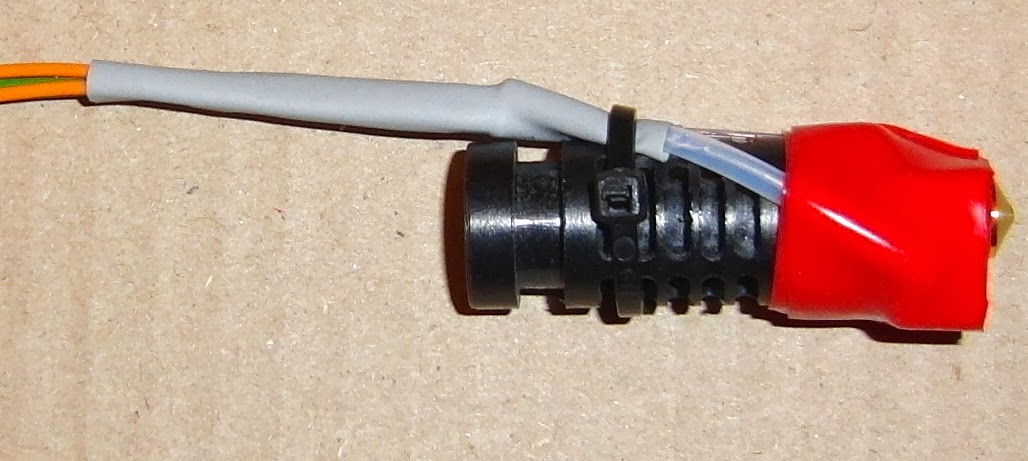
On investigation I found what I had suspected for a long time: that the heat at the top is mainly due to convection rather than conduction. This is easily demonstrated by running the extruder on its side. A lot of people add a second fan but a simple solution is to insulate the heater block. I now wrap it in two turns of silicone "self amalgamating" or "self fusing" tape, which is rated for 260°C. There are several brands but I use E-Z Fuse Tape which is 25mm wide. I stretch 110mm of it around the bottom of the PEEK, just below the bottom vent slots. I then trim it flush with the bottom of the heater block with a pair of scissors.

This makes enough difference to allow it to extrude very slowly without jamming. To cool it further I added a small hole to the fan duct.
 A small airflow makes a big difference because it disrupts the convection but it is only active after the first layer when the fan is on.
It is possible to drill the hole to upgrade an old fan duct but straight drilling will spit the layers apart as it is a very thin wall. The way I did it was to melt a hole using a soldering iron with a conical bit set to 200°C. At that temperature you can wipe the ABS off the bit before it has chance to burn and make a mess of it. I then clean up the hole by drilling the melted ring it with a 4.5mm drill and then trim it flush with a penknife.
Another mod I made was to apply a bit more pressure to the idler by adding washers to each end of the springs. The same effect can be achieved by tightening the screws so they go about 1.5mm past the back of the bearing block but I like them flush with the block for an easier reference point.

These three little changes made a big difference and I can now extrude PLA at 185°C, which gives better print quality. I have updated the android gcode I include on the SD card and I have put the new Skeinforge settings on Github.
I switched to Brecoflex® belt which has more thinner wires in it and also boasts that it has a better arrangement of strands within each wire. This makes it more flexible without being less strong. The wires are also parallel, whereas cheaper belts have them in a spiral so they meet the edge every so often.
The clamps now only have plastic in compression so are much stronger. They do use a lot more fasteners but because the screws are accessible from above they no longer need to have hex heads, so that is one less type of screw required.

The nut trap for the lead screw is now at the top (don't be fooled by the hexagonal hole at the bottom, that is just clearance to allow the nut to be fitted to the leadscrew first). This greatly increases the distance of the nut from the Z coupling when the Z axis is at the bottom. When the nut was at the bottom it got to within about 10mm so any eccentricity was magnified by about 20 at the top of the leadscrew.
Because holes can't be printed in mid air there are one layer thick support membranes at the bottom and the top of the nut trap. This creates a completely enclosed void which revealed a bug in OpenScad. It generates an STL with the internal faces facing the wrong way, i.e. outwards instead of inwards. Fortunately Skeinforge does not care and slices it correctly but Slic3r doesn't.
Another little tweak to the design was to angle the hole for the idler axle. It is a clearance hole so the belt tension pulls the front of the bolt to the right, which tends to make the belt run to the front of the idler pulley, requiring a shim under the back washer to correct it. The new design angles the bolt hole slightly to correct for this so doesn't require a shim. Here is a cross section showing that when the axle bolt is orthogonal the front rests against the right side of the hole and the nut at the back rests on the left side of its trap.

The X motor bracket has been simplified and made much easier to print. The previous design fastened the motor with three screws at the front and used a box construction to be stiff enough not to bend under the belt tension. The new design has one screw in the back of the motor so that only two are needed at the front leading to a much smaller bracket.


Like the idler, the clearance screw holes for the motor would allow the front to be pulled to the left causing the belt to run to the front of the pulley. The motor holes have been offset by half their clearance to avoid this.

To address these issues I switched to neoprene rubber tubing that seems to have the bore more central and is also a lot more flexible. I changed the plastic parts so they can be closed completely to give the correct pressure rather than relying on a gap being maintained. I also made the screw positions diagonally opposite which makes them a bit easier to tighten up.

The only downside to the neoprene is that it doesn't give enough grip to be able to turn the motor manually when it is enabled. To allow bed levelling I changed the Pronterface buttons for back left and back right to disable the motors. The new config file is on Github.


The two extra washers are needed at the front to avoid using an additional screw length. The two rear fixing blocks are now different from the others because they don't have a nut trap in the middle position.


 Kits have been shipping with all these mods for a while now but the time out taken to make the changes led to a backlog and a large waiting list which we have been working flat out to clear and hope to get back to next day dispatch this week.
Hot End
It came to light during the hot summer that the top of the J-Head can get too hot for extruding PLA. The problem seems to manifest itself when extruding slowly because it takes longer for the filament to pass through the hex grub screw (which is the Achilles heel of the J-Head because it is wider than the rest of the filament path) and so has enough time to soften and buckle. Ironically it is also more of a problem when extruding at lower temperatures because the filament gets harder to push and so buckles at a lower temperature.On investigation I found what I had suspected for a long time: that the heat at the top is mainly due to convection rather than conduction. This is easily demonstrated by running the extruder on its side. A lot of people add a second fan but a simple solution is to insulate the heater block. I now wrap it in two turns of silicone "self amalgamating" or "self fusing" tape, which is rated for 260°C. There are several brands but I use E-Z Fuse Tape which is 25mm wide. I stretch 110mm of it around the bottom of the PEEK, just below the bottom vent slots. I then trim it flush with the bottom of the heater block with a pair of scissors.

It is possible to drill the hole to upgrade an old fan duct but straight drilling will spit the layers apart as it is a very thin wall. The way I did it was to melt a hole using a soldering iron with a conical bit set to 200°C. At that temperature you can wipe the ABS off the bit before it has chance to burn and make a mess of it. I then clean up the hole by drilling the melted ring it with a 4.5mm drill and then trim it flush with a penknife.
Another mod I made was to apply a bit more pressure to the idler by adding washers to each end of the springs. The same effect can be achieved by tightening the screws so they go about 1.5mm past the back of the bearing block but I like them flush with the block for an easier reference point.

These three little changes made a big difference and I can now extrude PLA at 185°C, which gives better print quality. I have updated the android gcode I include on the SD card and I have put the new Skeinforge settings on Github.
Settings
Other improvements I made to the settings are: -The PLA settings were erroneously under the ABS profile, sorry for the confusion. The un-configured profiles have been removed and two new ones: PLA0.3 and PLA0.2 have been added. The android sample is sliced with the 0.3mm layer profile because it is easier to get the Z calibration right with the highest layer height possible with PLA. The 0.2mm profile gives a much nicer print.
The ooze free unattended start was not very reliable with PLA. Lowering the temperature helped but I also improved the extruder priming by extruding a very fat line along the front edge of the bed instead of a blob.
I have come to realise that you get better prints if you do the outlines at the same speed as the infill and looking back I think that is what I have seen commercial machines do. The old profiles had the outlines at 25mm/s and infill at 50mm/s. I now do both at 40mm/s.
The reason it works better is because when the extruder rewinds at the end of one run and then fast forwards the same distance to start another it will restore the same nozzle pressure as it had on the previous run. That means the initial flow rate will be the same, so if the speed has changed it will be too fast or too slow. This leads to blobs on the outline after doing faster infill and gaps at the start of infill after doing slow outlines.
Another advantage is with a constant flow rate the plug of plastic that forms at the hot end transition zone will be a constant length. If the speed increases the length reduces, which means less of the barrel has plastic expanded to the barrel's diameter and more has it at the original filament diameter. This implies there is less plastic in the barrel, so an excess must have been extruded while the plug was shortening. Conversely when the extrusion rate drops the plug extends so too little plastic will be extruded during that time.
Yet another advantage of using constant flow rate is that the die swell will be constant, so the plastic is always stretched by the same amount. When outlines are done slower the die swell is less, so they are stretched less, and so don't span gaps as well as the infill.
I have set the outline flow rates slightly lower than the infill. Skeinforge's volumetric calculations fill a rectangle equal to the filament width and layer height. This is OK for the infill but the outline does not have a rectangular profile, it has rounded sides, so it comes out a little wider than intended. The error is less when the filament path is wide compared to its height. The correct value is 1 + (π/4 - 1) / (w / h). Using this formula I get dimensionally correct prints instead of outlines that are too big and holes that are too small.
PLA prints better when cooled by the fan but you don't want it cooling the print surface when the first layer is being laid down. Ironically print cooling seems to be more important when extruding at 185°C than at 220°C for reasons I can't yet explain. To be able to automatically turn the fan on at a specified layer I had to incorporate an update to the Cool plugin by DeuxVis and Joost-b plus my own little bug fix. I have put the patched version of Skeinforge50 that I include on the SD card onto Github.
Firmware
I made three small tweaks to the version of Marlin I distribute: -
I reduced the XY acceleration from 4000 to 2000 as the Y axis can lose steps due to resonance in high frequency infill otherwise.
I found that the Y axis would overshoot when homing if the X axis hits the end stop first. This was because the axis moves 40% faster on it own than when moving diagonally. I reduced the homing speeds but multiplied them by 1.4 when moving diagonally. The net effect is diagonal homing is the same speed as before but it now doesn't speed up when one axis stops.
I updated the PID constants for J-Head MK5B as I hadn't changed them from MK4B. It didn't seem to make much difference.
X ends
A few people started reporting the bar clamps on the X motor bracket and the X idler bracket had cracked. I am not sure why this became a problem after hundreds of kits. Some reported they could not get enough tension to pull the belt tight, so perhaps the belt got stiffer, or the plastic parts weaker. I built a kit myself to investigate using a problem belt that one of my customers returned. It was inconclusive because I managed to get the machine printing well without breaking the clamps but I think some belts are stiffer than they were in the first kits, despite coming from the same manufacturer and I also think the plastic parts might not be as strong as they used to be due to ABS supply changing. I tackled the problem from both sides by immediately switching to more flexible belt and then redesigning the X end clamps.I switched to Brecoflex® belt which has more thinner wires in it and also boasts that it has a better arrangement of strands within each wire. This makes it more flexible without being less strong. The wires are also parallel, whereas cheaper belts have them in a spiral so they meet the edge every so often.
The clamps now only have plastic in compression so are much stronger. They do use a lot more fasteners but because the screws are accessible from above they no longer need to have hex heads, so that is one less type of screw required.

The nut trap for the lead screw is now at the top (don't be fooled by the hexagonal hole at the bottom, that is just clearance to allow the nut to be fitted to the leadscrew first). This greatly increases the distance of the nut from the Z coupling when the Z axis is at the bottom. When the nut was at the bottom it got to within about 10mm so any eccentricity was magnified by about 20 at the top of the leadscrew.
Because holes can't be printed in mid air there are one layer thick support membranes at the bottom and the top of the nut trap. This creates a completely enclosed void which revealed a bug in OpenScad. It generates an STL with the internal faces facing the wrong way, i.e. outwards instead of inwards. Fortunately Skeinforge does not care and slices it correctly but Slic3r doesn't.
Another little tweak to the design was to angle the hole for the idler axle. It is a clearance hole so the belt tension pulls the front of the bolt to the right, which tends to make the belt run to the front of the idler pulley, requiring a shim under the back washer to correct it. The new design angles the bolt hole slightly to correct for this so doesn't require a shim. Here is a cross section showing that when the axle bolt is orthogonal the front rests against the right side of the hole and the nut at the back rests on the left side of its trap.

The X motor bracket has been simplified and made much easier to print. The previous design fastened the motor with three screws at the front and used a box construction to be stiff enough not to bend under the belt tension. The new design has one screw in the back of the motor so that only two are needed at the front leading to a much smaller bracket.

The length of stepper motors has a poor tolerance of ±1mm because it is made from a stack of laminations pressed together. For this reason I couldn't use a normal screw through the plastic. Instead the screw head is packed out with as many washers needed to fill the gap between the motor and the bracket. This will be one if the motor is top tolerance and five if it is bottom tolerance. The hole in the bracket is a snug fit for the head of the screw so it acts as a dowel.

Like the idler, the clearance screw holes for the motor would allow the front to be pulled to the left causing the belt to run to the front of the pulley. The motor holes have been offset by half their clearance to avoid this.

Z couplings
The original Z couplings worked well on all of my machines until I built another one that produced objects with some Z banding. Investigation with a dial gauge showed that the Z position was not increasing linearly leading to uneven layer heights. I found that the lead screw was eccentric leaving the coupling due to the bore of the PVC tubing not being central. Also PVC is more plastic than elastic, so when it is squeezed by the coupling it deforms permanently and does not give much flexibility. The couplings where designed with a gap so it was possible to over tighten them leading to too much constraint. The top needed to be fully closed because the studding has a smaller outside diameter than a normal M6 bolt would have.To address these issues I switched to neoprene rubber tubing that seems to have the bore more central and is also a lot more flexible. I changed the plastic parts so they can be closed completely to give the correct pressure rather than relying on a gap being maintained. I also made the screw positions diagonally opposite which makes them a bit easier to tighten up.

The only downside to the neoprene is that it doesn't give enough grip to be able to turn the motor manually when it is enabled. To allow bed levelling I changed the Pronterface buttons for back left and back right to disable the motors. The new config file is on Github.
X carriage fan bracket
The length of the J-Head MK5B is incorrect in the Mendel90 model. This makes the fan duct too low and it hits the clips on the bed. A simple solution is to make the slots in the fan bracket deeper so it can be fitted a bit higher. I also added strengthening ribs as the old bracket allowed the duct to droop.

Tube end caps
I reversed the direction of the screws that hold the aluminium tubes onto the base. The nut is now trapped inside the tube by the end cap. This means the tube no longer needs the large holes for the screw head, which greatly reduces the amount of machining I need to do to make them.


Y carriage heat shield
Instead of using aluminium foil to reflect heat I found that simply filling the gap under the bed with multiple layers of corrugated cardboard allows the bed to reach higher temperatures.

Spool Holders
These are now assembled with the large washer on the outside of the spool rather than the inside, requiring four more small washers. This is to accommodate spools that originate from Orbitech that are slightly wider than the ones I used to get.

Subscribe to:
Posts (Atom)

